
Kubectl Cheat Sheet – 41 Unique Kubernetes Commands Every Admin Should Know – Part 1
Managing Azure Kubernetes Service (AKS) clusters becomes much easier when you know the right kubectl commands. This guide is designed for AKS administrators, DevOps engineers, and Kubernetes professionals who want to streamline their daily cluster operations.
Note: All Kubectl commands I’m executing below are executed on Windows CMD
Table of Contents
1. Kubectl Cheat Sheet – Shortcut to Kubectl Commands
a. Setting Up kubectl Aliases
Instead of typing kubectl get pods, you simply type k get pods. This small change saves precious seconds on every command.
- Windows Command Prompt Configuration
For Windows Command Prompt users, the setup requires creating a batch file or using doskey.
doskey k=kubectl $*b. PowerShell Alias Setup
PowerShell users the built-in alias system:
Set-Alias -Name k -Value kubectlTo make this alias permanent across PowerShell sessions, add it to your PowerShell profile. Check if a profile exists with Test-Path $PROFILE. If it returns false, create one with New-Item -Type File -Path $PROFILE -Force. Then add the alias command to the profile file.
c. Linux and macOS Configuration
Linux and macOS users can leverage the shell’s native alias functionality. Add this line to your shell configuration file:
alias k=kubectl2. Pod and Container Management
a. Identify Pods Created By A Deployment
When you know the deployment name but need to track down its pods, start by examining the deployment’s labels.
kubectl get deploy <deployment-name> -n <namespace> -L appOnce you have the label information, you can directly query for pods using that same label selector.
kubectl get po -l app=<label-value> -n <namespace>b. Get All Resources Using Label Selectors
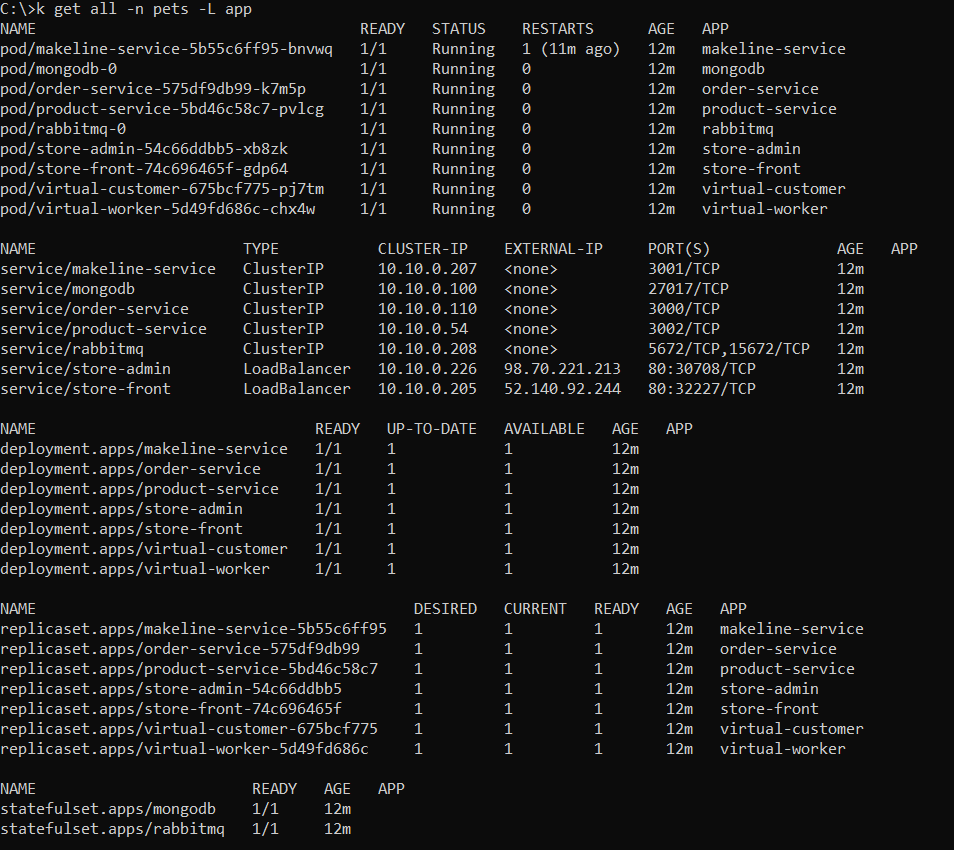
Label selectors become incredibly powerful when you want a comprehensive view of related resources. Running kubectl get all -L app -n <namespace> displays every resource associated with that particular label. This single command reveals deployments, ReplicaSets, pods, and services that share the same label, giving you a complete picture of your application’s components.
d. Add New Labels to Pods
Adding completely new labels to pods is straightforward with kubectl label po <pod-name> type=special. This command creates a new label without affecting existing ones. New labels are perfect for adding metadata that helps with organization, monitoring, or debugging workflows.
e. Get the Container Status
k get pods makeline-service-5b55c6ff95-bnvwq -o json -n pets | jq .status.conditions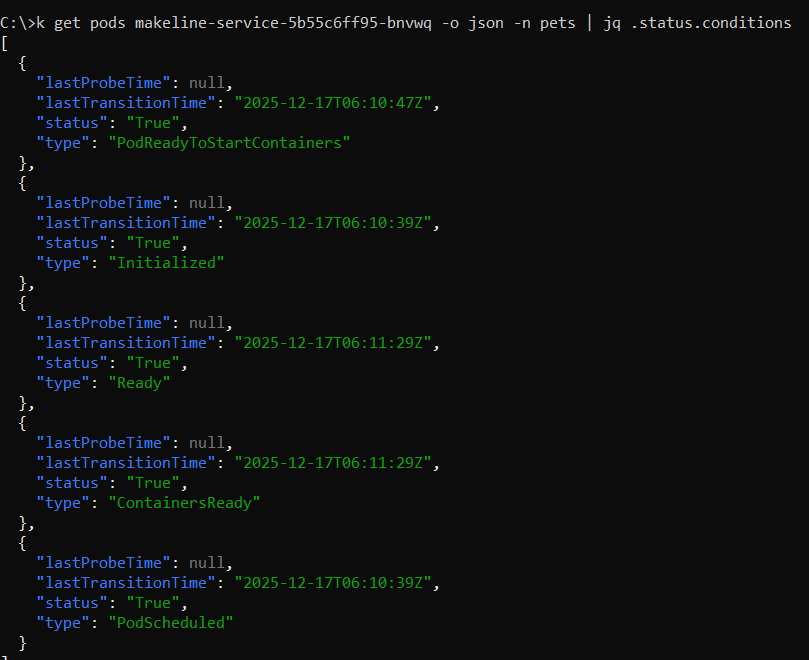
How to install.jq
- Install chocolatey using powershell
- Set-ExecutionPolicy Bypass -Scope Process -Force; [System.Net.ServicePointManager]::SecurityProtocol = [System.Net.ServicePointManager]::SecurityProtocol -bor 3072; iex ((New-Object System.Net.WebClient).DownloadString(‘https://community.chocolatey.org/install.ps1’))
- Install jq
- choco install jq
f. Pod Count on Nodes
Extracts the maximum number of pods that node can schedule
kubectl get nodes -o json | jq -r ".items[] | \"\(.metadata.name): \(.status.allocatable.pods)\""
# List all pods running on node srv01kubectl
get pods --field-selector=spec.nodeName=srv01 -n pets

f. Pod Status
#Running Pods
kubectl get pods --field-selector status.phase=Running
#Pending Pods
kubectl get pods --field-selector status.phase=Pending
#Pods Resource utilizations
kubectl top pods
g. Pods and Containers Lifecycle
kubectl get po store-admin-54c66ddbb5-xb8zk -n pets -o json | jq .status.phase
kubectl get po store-admin-54c66ddbb5-xb8zk -n pets -o json | jq .status.conditions
kubectl get po store-admin-54c66ddbb5-xb8zk -n pets -o json | jq .status.containerStatuses
h. Performance Testing
It is typically used for continuous monitoring, particularly during performance or stress testing, to understand the behaviour of the Horizontal Pod Autoscaler (HPA) and Deployment.
- HPA (Horizontal Pod Autoscaler)
- Deployments
for /l %g in () do @(kubectl get hpa,deploy & timeout /t 5)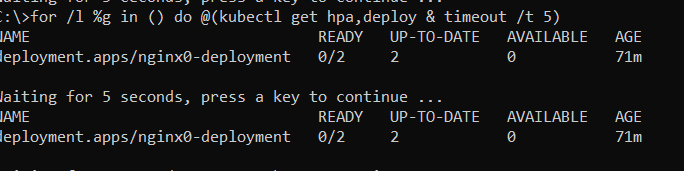
i. Pods and Container Logging and Monitoring
Pods and Container Logging & Monitoring provide visibility into application behavior by capturing logs and metrics from containers running inside Pods. These logs help troubleshoot errors, performance issues, and unexpected restarts. Continuous monitoring enables proactive detection of failures, resource bottlenecks, and scaling needs to maintain application reliability.

#To strem logs
kubectl logs -f store-admin-54c66ddbb5-xb8zk -n pets
# Returns a snapshot of the logs from pod
kubectl logs store-admin-54c66ddbb5-xb8zk -n pets
#Get container name within pod
kubectl get pods makeline-service-5b55c6ff95-bnvwq -o jsonpath='{.spec.containers[*].name}' -n pets
#Logs from Containers
kubectl logs store-admin-54c66ddbb5-xb8zk -n pets -c <containername>
#Logs last 2 Mins
Kubectl logs store-admin-54c66ddbb5-xb8zk -n pets --since=2m
#Last 10 logs
kubectl logs store-admin-54c66ddbb5-xb8zk -n pets –-tail=10
j. Pod and Services Connectivity Test
kubectl port-forward is used to access a Kubernetes Pod or Service locally by forwarding a local port to a port inside the cluster.
#Connect to pod using port-forward
kubectl port-forward order-service-575df9db99-k7m5p -n pets 8000
#Connect to service using port-forward
kubectl port-forward service/makeline-service -n pets 3001:8000
k. Deleting Pods
You can delete resources using the delete operation. Resources can be specified by their filenames, standard input (stdin), label selectors, names, resource selectors, or by directly listing the resources.
# Deleting a pod using the type and name specified in the pod.yaml file.
kubectl delete -f pod.yaml

# Deleting all the pods and services that have the label name=<my-label>.
kubectl delete pods,services -l name=<my-label>

# Deleting all the pods and services that have the label name=<my-label>,
including uninitialized ones.
kubectl delete pods,services -l name=<my-label> --include-uninitialized

# Deleting all pods, including uninitialized ones.
kubectl delete pods --all
l. Pods Events
Few very useful commands to help get the right events at the right time. In Kubernetes, Events are a resource type automatically generated to broadcast messages, such as state changes or errors, related to other resources.
# List Events ed by timestamp
kubectl get events --sort-by=.metadata.creationTimestamp
#Filter pod events only
kubectl get events --field-selector involvedObject.kind!=Pod
#Filter events for a single node named "mini"
kubectl get events --field-selector involvedObject.kind=Node,involvedObject.name=mini
#Watch realtime
kubectl get events --watch
#Filter warning only
kubectl get events --field-selector type=Warning
# List Events sorted by timestamp with warning
kubectl get events --sort-by=.metadata.creationTimestamp --field-selector type=Warning

j. Remotely executing commands in running containers
kubectl exec <pod Name> -- curl -s http://10.111.249.153

#Connect to container within pod
kubectl exec -it kubia-2xmhn -c kubia -- bash
3. Nodes Management
a. Find IP address of Nodes
You can find the IP in the JSON or YAML descriptors of the nodes. But instead of sifting through the relatively large JSON, you can tell kubectl to print out only the node IP instead of the whole service definition:
kubectl get nodes --output=jsonpath="{range .items[*]}{.metadata.name} {.status.addresses[?(@.type==\"InternalIP\")].address} {.spec.podCIDR}{\"\n\"}{end}"
b. Node Status
Quickly find any issues related to Nodes
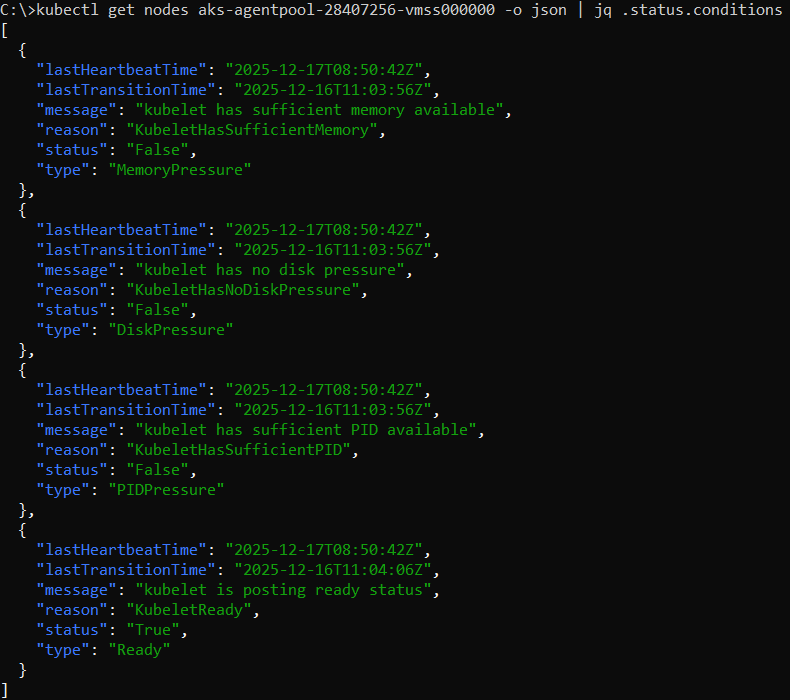
kubectl get nodes aks-agentpool-28407256-vmss000000 -o json | jq .status.conditions
#Nodes Resource Utilziations
kubectl top nodes
Diagnose cluster issues with comprehensive status checks
When your AKS cluster starts acting up, you need quick ways to get a complete health picture. The kubectl cluster-info command shows essential cluster details including API server endpoints and add-on services. For deeper insights, run kubectl get nodes -o wide to check node status, IP addresses, and container runtime versions.