
2026 Proven Guide: Azure SPN Secret Expiry Automation & Graph API
Azure SPN secret expiry guide for 2026. Automate detection, notification, and rotation using Microsoft Graph API, managed identities, and Azure Automation.
Table of Contents
You may also be interested in my other AKS-related blogs
- Azure AKS Networking Explained: Critical Differences Between Azure CNI Overlay vs Node Subnet vs Pod Subnet – Part 1
- Azure AKS FailedScheduling – Kubernetes scheduler failure Insufficient CPU
- Kubectl Cheat Sheet – 41 Unique Kubernetes Commands Every Admin Should Know – Part 1
- AKS Private Cluster: Create a Private Azure Kubernetes Service (AKS) Cluster – Part 1
1. Prerequisites Checklist – SPN Secret Expiry
Before running the runbook, following prerequisites are required
A. Required Modules
IMP Note:
Please upload the following PowerShell modules to your Automation Account, as compatibility issues exist between the latest GrapAPI modules and the PowerShell 7.2 platform. Crucially, ensure the modules are uploaded with the specific version 2.25.0 available from the link provided below with PowerShell 5.1.
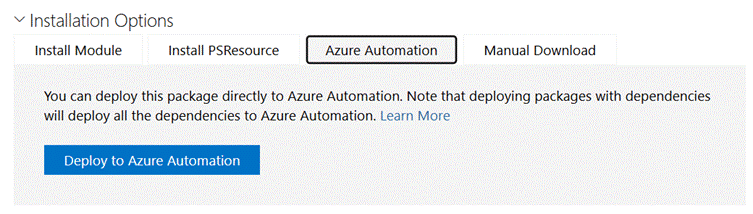
https://www.powershellgallery.com/packages/Microsoft.Graph.Identity.DirectoryManagement/2.25.0
- Microsoft.Graph.Authentication: to authenticate against the Graph.
- Microsoft.Graph.Users.Action: to send a message.
- Microsoft.Graph.Mail: to access mail messages.
- Microsoft.Graph.Application
- Microsoft.Graph.Identity.Management: to get organization details.
- MSOnline` (Required for `Connect-MsolService`, used here to authenticate for `Send-MailMessage`)
B. Managed Identity Permissions
The Automation Account’s **System-assigned Managed Identity** must have the necessary permissions to query Entra ID applications and secrets via the Microsoft Graph API.
Permissions:
- Application.Read.All
- Mail.Send (if sending mails using GraphAPI)
Script to assign Above Permissions:
 # 1. Define the name of your Automation Account
 $automationAccountName = "YourAutomationAccountName"
 # 2. Get the Managed Identity Service Principal Object ID
 $managedIdentity = Get-MgServicePrincipal -Filter "displayName eq '$automationAccountName'"
 # 3. Get the Microsoft Graph Service Principal in your tenant
 $graphApp = Get-MgServicePrincipal -Filter "AppId eq '00000003-0000-0000-c000-000000000000'"
 # 4. Find the 'Application.Read.All' role ID
 $appRole = $graphApp.AppRoles | Where-Object {$_.Value -eq "Application.Read.All" -and $_.AllowedMemberTypes -contains "Application"}
 # 5. Assign the permission
 New-MgServicePrincipalAppRoleAssignment `
            -ServicePrincipalId $managedIdentity.Id `
            -PrincipalId $managedIdentity.Id `
            -ResourceId $graphApp.Id `
-AppRoleId $appRole.IdAlternative: Using Entra ID “Admin Roles” (Portal UI Only)
If we strictly want to use the Entra ID Portal UI (no Graph Explorer, no PowerShell), you have to use Directory Roles. This is “heavier” than Graph permissions, but it is the only way to do it entirely via the standard Portal buttons.
- Go to Entra ID > Roles and administrators.
- Search for “Directory Readers” (allows reading SPN metadata) or “Application Administrator” (allows full management).
- Click the role name > Add assignments.
- Click Select members, search for the name of your Automation Account, and click Add.
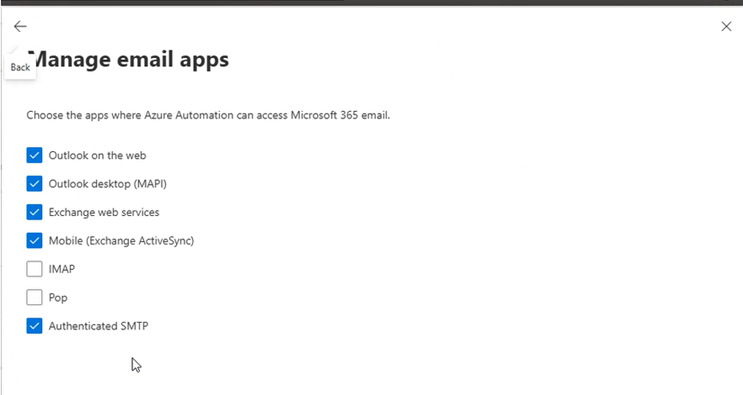
2. Service Account to send mails with Send As permissions as mentioned below
To enable the automated email functionality, the service account (Mentioned in below script) which must be a separate mailbox requires specific permissions. Failure to grant these permissions will result in a 403 Forbidden error.
3. Automation Runbook Script (Works only with PowerShell 5.1 Runbook)
############################################################
# Login using Managed Identity
############################################################
Connect-AzAccount -Identity
$token = (Get-AzAccessToken -ResourceUrl "https://graph.microsoft.com").Token
$headers = @{
    Authorization = "Bearer $token"
    "Content-Type" = "application/json"
}
Write-Output "Connected to Microsoft Graph"
############################################################
# Get Applications
############################################################
$uri = "https://graph.microsoft.com/v1.0/applications?`$select=displayName,appId,passwordCredentials"
$applications = @()
do {
    $response = Invoke-RestMethod -Method GET -Uri $uri -Headers $headers
    $applications += $response.value
    $uri = $response.'@odata.nextLink'
} while ($uri)
$result = @()
$today = Get-Date
foreach ($app in $applications) {
    foreach ($secret in $app.passwordCredentials) {
        $days = ($secret.endDateTime - $today).Days
        if ($days -le 60) {
            $status = if ($days -lt 0) { "Expired" } else { "Expiring Soon" }
            $result += [PSCustomObject]@{
                DisplayName  = $app.displayName
                AppID        = $app.appId
                SecretId     = $secret.keyId
                SecretHint   = $secret.hint
                StartDate    = $secret.startDateTime
                EndDate      = $secret.endDateTime
                DaysToExpire = $days
                Type         = "Client Secret"
                Status       = $status
            }
        }
    }
}
Write-Output "Total expiring: $($result.Count)"
############################################################
# Export to Excel
############################################################
$date = Get-Date -Format "yyyy-MM-dd"
$file = Join-Path $env:TEMP "SPN-$date.csv"
$result | Export-Csv $file -NoTypeInformation
$emailFromAddress = "<>"
$emailToAddress = "<>"
$emailSMTPServer = "outlook.office365.com"
$emailSubject = "[Daily] Automated SPN Report,$date"
$emailSubject = $emailSubject.Trim()
$Body = "############### Automated SPN Report ###############<br><p><br><br>Hi All,</br></br> Please find today's i.e. $date Automated Prod Subscription VM Backup Report <br></p>"
$Body = $Body.Trim()
$credObject = Get-AutomationPSCredential -Name "cred"
Connect-MsolService -Credential $credObject
#$O365Licenses = Get-MsolAccountSku | Out-String
Send-MailMessage -Credential $credObject -From $emailFromAddress -To $emailToAddress -Subject $emailSubject -Body $Body -SmtpServer $emailSMTPServer -UseSSL -BodyAsHtml -Attachments $file
4. Sample Output

FAQ
Which specific PowerShell module version is required for this runbook, and why?
You must strictly use version 2.25.0. This is necessary because there are compatibility issues between the latest GraphAPI modules and the PowerShell 7.2 platform. The guide explicitly states that you should ensure this specific version is uploaded (available via the provided link) with PowerShell 5.1
What prerequisites are needed for the Automation Account’s Managed Identity?
The Automation Account must have a System-assigned Managed Identity enabled. This identity requires specific permissions to query Entra ID applications and access secrets via the Microsoft Graph API. The specific permissions required are Application.Read.All and Mail.Send
How can you assign the necessary permissions if you are restricted to using the Entra ID Portal UI?
If you cannot use PowerShell or Graph Explorer, you can use Directory Roles through the Entra ID Portal. You would navigate to “Roles and administrators” and assign either the “Directory Readers” role (for reading SPN metadata) or the “Application Administrator” role to your Automation Account